
WordPress Plugin Rollback Checklist: Recover After a Bad Update
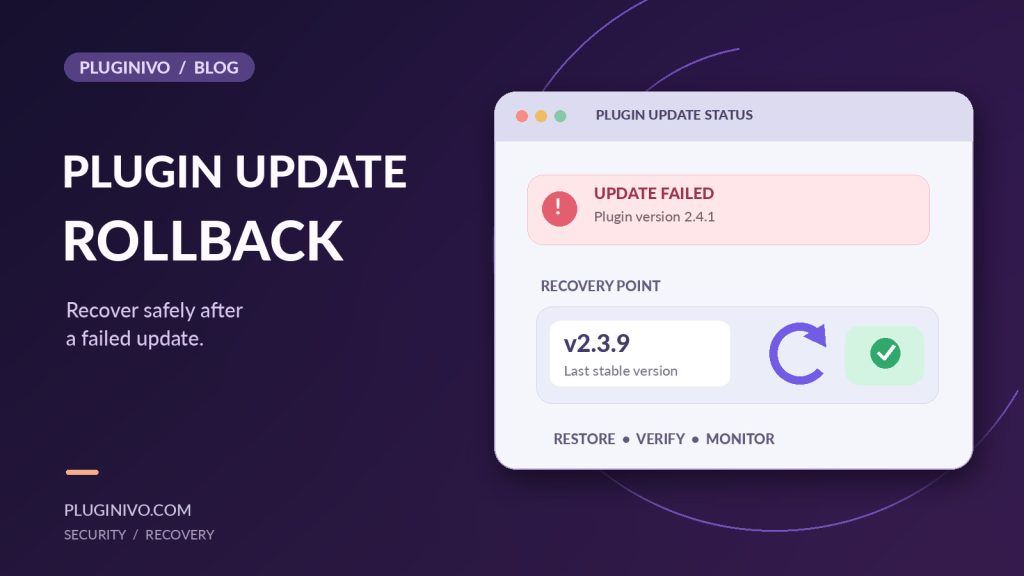
A WordPress plugin update can fail in several ways: a white screen, a broken checkout, a missing administrator page or a conflict with another extension. A plugin rollback should be a controlled recovery step, not an impulsive attempt to hide the problem. Returning to an older version may restore service, but it may also reintroduce a known vulnerability.
First assess the impact
Before changing files, determine what is actually broken. Can customers place orders? Is only the admin interface affected? Do errors appear to all users or only when a particular plugin feature runs? Record the plugin name, old and new versions, update time, PHP version and visible symptoms.
If the site is still functioning, avoid repeated untested updates while collecting evidence. If it is unusable, follow your incident plan and protect customer-facing services first.
The safe recovery sequence
- Take a fresh backup: preserve files and database even if the current state is faulty, so you retain the evidence and data needed for diagnosis.
- Check the error: review WordPress logs, server PHP logs and the plugin changelog.
- Verify compatibility: compare PHP, WordPress, WooCommerce and other relevant plugin versions.
- Choose a trusted package: download the previous version only from the vendor or another verified source.
- Test restoration: preferably reproduce the fix on staging, including critical forms and checkout flows.
- Restore deliberately: follow the developer’s instructions; some plugins need a matching database schema.
- Confirm functionality: test the affected feature and check logs for continued errors.
- Plan the real fix: report the conflict or update again after the vendor resolves it.
Simply copying older files is not always a complete rollback. Database migrations, stored settings and scheduled jobs can remain changed. In some cases, restoring a coordinated files-and-database backup is safer than downgrading just one extension.
What about a security update?
Rolling back a release that fixes a security vulnerability can create fresh risk. If possible, apply an updated patched release, disable the affected feature temporarily or use an approved mitigation while seeking the vendor’s guidance. Evaluate the urgency against the availability of a tested recovery path.
Before future updates, use our WordPress plugin update checklist to plan backups and file comparison, and the file integrity monitoring guide to distinguish expected update changes from unrelated modifications.
A useful post-update verification list
| Area | What to verify |
|---|---|
| Storefront | Home, product, search and navigation pages |
| Checkout | Cart, payment selection and test-order flow in a safe environment |
| Administration | Plugin settings, updates and permission checks |
| Automation | Scheduled jobs, transactional mail and webhooks |
| Security | Unexpected users, file changes and error spikes |
File integrity monitoring during recovery
An integrity baseline can show which files changed during an update or restoration. It cannot establish that the software is secure by itself. After a trusted repair, create a verified baseline and preserve the previous alert history for reference. Pluginivo File Integrity Monitor PRO is an option for tracking file changes as part of that review.
Frequently asked questions
Is installing an older plugin ZIP always safe?
No. The older release may contain security issues or require an incompatible database structure.
Can I roll back only the plugin files?
Sometimes, but not always. Check whether the update changed database tables or stored configuration.
Should I deactivate every plugin to troubleshoot?
Not without considering live-store impact. Prefer controlled testing and a documented isolation plan.
Takeaway: Back up, diagnose, choose a trusted recovery method, test thoroughly and plan a secure update path forward.