WordPress Plugin Update Checklist: Verify File Changes Safely
Updating a WordPress plugin is routine maintenance, but it also changes executable files on your website. A successful “Update complete” message tells you that WordPress finished a task; it does not prove that every file is expected, that a custom integration still works or that nobody changed a file separately. A practical WordPress plugin update checklist closes that gap without turning every update into a security incident.
If file baselines are unfamiliar, first learn about monitoring unexpected WordPress file changes before accepting a changed hash.
Start with a real example: explore Pluginivo File Integrity Monitor PRO or try its live demo to see how modified, added and deleted files appear in an event log. If you’re new to the concept, read our introduction to WordPress file integrity monitoring first. This guide focuses on what to do before and after planned updates.
Before an update: record what you expect to change
The safest investigation starts before you click Update. Note the plugin name, installed version, target version and planned time. Check the vendor’s release notes, including whether a release changes PHP requirements, database structures, payment behavior or authentication. An update to a checkout integration is not equivalent to an update to a decorative widget.
- Verify the source. Install updates from the official WordPress directory, an established commercial vendor or your trusted release process—not from an attachment with an unknown origin.
- Make a tested backup. Save both files and database using a method you know how to restore. A backup that has never been tested is not yet a recovery plan.
- Review dependencies. Confirm PHP, WordPress and WooCommerce compatibility when relevant. Note custom themes or snippets calling the plugin’s APIs.
- Record a trusted baseline. If you use integrity monitoring, make sure its baseline predates the update and reflects a known-good site. Do not create a new baseline simply to hide existing unexplained warnings.
- Choose a quiet window. For business-critical workflows, use staging first and plan a rollback if testing fails.
During the update: distinguish planned changes from surprises
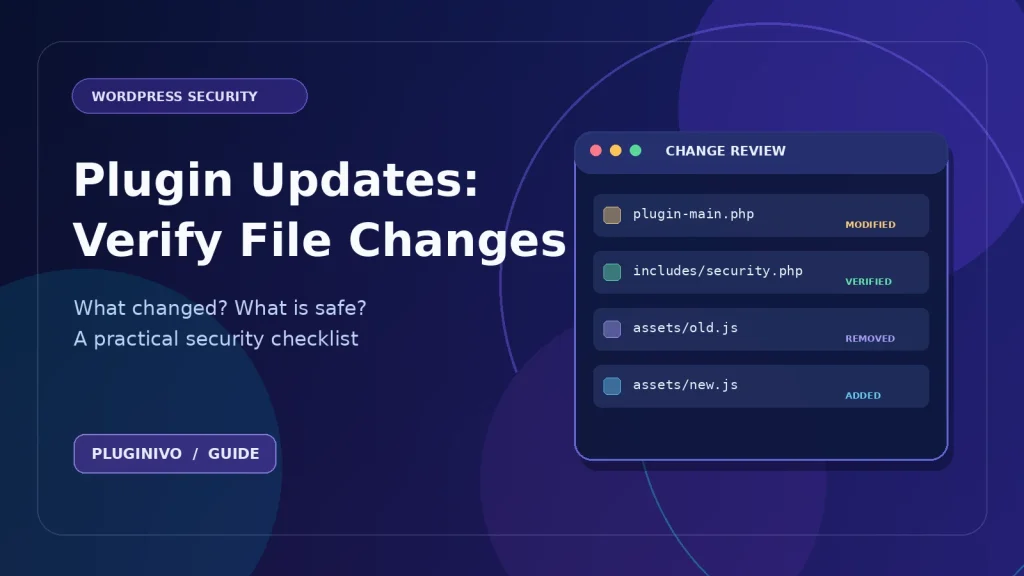
WordPress updates often replace many files at once. A plugin might add a JavaScript bundle, remove an obsolete PHP class or rename assets. Those changes are not automatically suspicious. What matters is whether the changed paths belong to the updated component and agree with the release you intended to deploy.
Keep the browser open until the update is complete. If a deployment tool or WordPress reports an incomplete update, investigate immediately rather than treating a partly replaced plugin directory as a normal state. Avoid simultaneously editing unrelated theme files; otherwise you lose the clean timeline that helps explain a later alert.
After the update: a 10-minute verification workflow
- Confirm the installed version. Open Plugins and check that the correct release is active. Review any WordPress update or deployment log.
- Open a normal page and an important workflow. Test menus, login, forms, checkout and license operations appropriate to your website. A site loading successfully does not mean every integration works.
- Review the file-change history. Look for added, modified and removed files and note whether the change falls inside the plugin you just updated.
- Compare unexpected paths. If a change affects an unrelated plugin, active theme, must-use plugin or core file, do not automatically dismiss it as part of the update.
- Check the site logs. Look for new PHP fatal errors, repeated 500 responses, unusual login attempts or failures in scheduled tasks.
- Verify scheduled monitoring. Check when the last scan actually completed. WP-Cron timing depends on site traffic and configuration.
- Document the outcome. Record what passed, what failed, and any change you accepted. Keep a rollback point until production behavior is verified.
Which file changes are normal after WordPress updates?
Use this quick decision table as a starting point, not as a substitute for reviewing the file contents.
| Change | Common explanation | Next check |
|---|---|---|
| Many files replaced in one plugin folder | Plugin release or reinstall | Compare release package and version |
| New bundled CSS or JavaScript | Build-system output | Check vendor release notes and file location |
| WordPress core PHP changed unexpectedly | Core update, manual edit or interference | Check official core checksums and update history |
| New PHP in an unrelated directory | Custom deployment or unauthorized change | Investigate owner, source, timestamp and content |
| A file disappears after an update | Cleanup of obsolete code | Check the updated package before restoring it |
Do not accept every alert as a new baseline
An acknowledgement and an acceptance are different decisions. Marking an event as reviewed should not silently rewrite your trusted reference. Accepting a new file hash is appropriate only after you verify the change. Otherwise, a malicious or accidental modification can become the new “normal,” making later detection less useful.
File Integrity Monitor PRO supports a review workflow with these distinct decisions. Recognized WordPress update events may refresh the affected baseline automatically, while changes outside that recognized path can still need human review. The plugin monitors relevant WordPress code, including supported mu-plugins and drop-ins; it does not scan every cache or uploaded media file.
What if an update triggers a suspicious alert?
Do not open or execute an unfamiliar PHP file to see what it does. Preserve the alert details and collect relevant server, update and administrator logs. Compare the changed file with a verified release or clean backup. If you suspect compromise, limit access according to your incident-response plan and involve a qualified security specialist. Restore only from trusted sources after investigating the entry point.
Remember that integrity monitoring detects changes. It is not a malware signature scanner, a firewall, a cleanup tool or a replacement for backups. It helps you ask better questions sooner.
How often should file checks run?
The appropriate schedule depends on update frequency, site importance and the person responsible for reviewing alerts. A small editorial website may need fewer scans than a high-traffic store, but scanning every 15 minutes is not useful if nobody reviews the results. Scheduled scans rely on WP-Cron; confirm actual completions rather than relying only on a configured interval.
For planned maintenance, a manual scan before and after a change can be more informative than a generic daily schedule. Record the before/after timing alongside the release you deployed.
Frequently asked questions
Will every plugin update create file-change alerts?
No. It depends on the monitoring tool, its baseline rules and whether it recognizes the WordPress update operation. Some updates can still require manual review, especially custom deployment or single-file changes.
Is it safe to ignore changes inside an updated plugin?
Not automatically. Changes in the expected folder are easier to explain, but you should still confirm that the plugin came from a trusted source and that no unrelated files changed.
Do I need WooCommerce to monitor WordPress files?
No. File integrity monitoring can help with ordinary WordPress sites too. The commercial tool linked here runs on WordPress independently of WooCommerce.
Can a checksum show that a file is malware-free?
No. A checksum shows whether contents match a reference. It does not establish that the reference itself is safe or explain who changed the file.
Make plugin updates auditable, not stressful
Good update hygiene is a repeatable routine: note the expected release, back up, update carefully, review relevant file changes and verify the business-critical workflows. This makes the unexpected changes stand out instead of treating every update as an emergency.
See Pluginivo File Integrity Monitor PRO for scan intervals, file-change events and optional WordPress core checksum comparisons, or explore the interactive demo before installing it.