WordPress File Integrity Monitoring: Detect Unexpected Changes (2026)
Unexpected WordPress file changes deserve attention, but not every change means a hack. Updates, deployment tools, manual edits and compromised accounts can all modify files. The useful question is whether a change is expected, documented and safe.
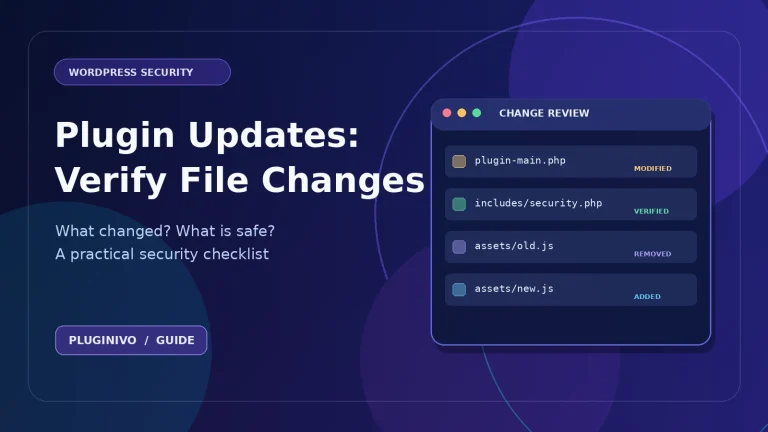
For a step-by-step review after a planned plugin update, use checking file changes after plugin updates as a companion checklist.
This guide explains WordPress file integrity monitoring, the role of SHA-256 checksums, how to investigate alerts and how to set up a repeatable review process without confusing detection with malware removal.
Useful tools: Explore Pluginivo File Integrity Monitor PRO to review file-change events, configurable scan intervals and optional WordPress core checksums. You can also explore the interactive File Integrity Monitor demo before installing anything.
What is WordPress file integrity monitoring?
File integrity monitoring (FIM) compares a current set of files with an earlier trusted reference, often called a baseline. A monitoring tool can report files that have been created, changed or removed since that baseline was recorded. It does not automatically explain why a change occurred.
A SHA-256 hash acts as a compact fingerprint of a file’s contents. If the content changes, its hash will almost certainly change. However, a matching hash only confirms that the file matches the reference you are comparing it to; it does not prove the reference was safe in the first place.
Which WordPress files are worth watching?
- WordPress core: unexpected edits to core PHP files warrant investigation. Legitimate core updates can change many files at once.
- Plugins: new or modified plugin PHP and JavaScript files might be part of an update, a deployment or an unauthorized change.
- Themes: custom templates, functions.php and bundled assets are natural monitoring candidates, particularly on production sites.
- Must-use plugins and drop-ins: mu-plugins and wp-content drop-in files can affect behavior early in the request lifecycle.
Not every directory belongs in the same baseline. Continuously changing uploads, cache and temporary files can produce noise. In Pluginivo File Integrity Monitor, uploads and cache directories are outside the monitored code scope; this is a deliberate scope choice, not a claim that those locations are risk-free.
How to establish a trustworthy baseline
- Start after verifying the site. Check WordPress, plugins, themes and administrator accounts; take a backup before making major changes.
- Complete approved updates. Apply supported core and plugin releases, then verify the site still works.
- Record known customizations. Document edited theme templates, mu-plugins and deployment-specific files.
- Create the baseline. Treat it as a reference snapshot, not as an automated certificate of security.
- Choose a sustainable review cadence. The right interval depends on how often the site changes, hosting load and who can investigate alerts.
Do not create a new baseline merely to make an unexplained alert disappear. That can permanently normalize unwanted modifications.
Changed, added and deleted: what do the alerts mean?
| Event | Common legitimate explanation | What to verify |
|---|---|---|
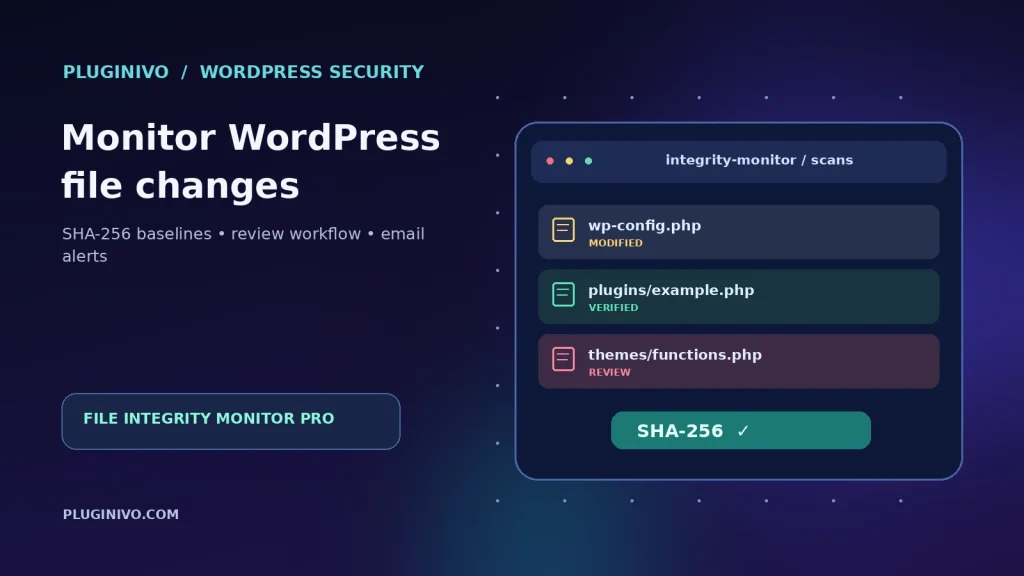
| Modified | Plugin update or authorized code edit | Deployment logs, release notes, file diff |
| Added | New plugin, theme or deployment file | Owner, origin, path and permissions |
| Deleted | Update cleanup or deployment change | Whether the file was intentionally removed |
One alert can be benign; a pattern of unfamiliar PHP files across unrelated directories should be investigated more urgently. Check the full path, timestamp, relevant user activity and whether a planned deployment explains the event.
A practical response checklist for an unexpected change
- Preserve the alert details and relevant logs before changing anything.
- Check the site’s update history, hosting activity and recent administrator actions.
- Compare the changed file with a known-good copy or the developer’s published release.
- Review unexpected code with a trusted administrator or security specialist; do not execute suspicious code to test it.
- If compromise is plausible, limit risky access, preserve evidence and follow your incident-response process.
- Restore affected files only from verified sources or clean backups, and investigate the entry point.
- Mark the event as reviewed; accept a new baseline only after confirming the change is legitimate.
File Integrity Monitor PRO distinguishes between acknowledging an event and accepting a change as correct. That distinction is important: a review does not have to erase your reference point.
What does File Integrity Monitor PRO provide?
Pluginivo’s tool monitors WordPress core, plugin and theme code, plus supported mu-plugins and drop-ins, against SHA-256 baselines. It supports manual scans, searchable events and grouped email notifications. PRO adds adjustable scan intervals and optional daily comparison of supported WordPress core files with official WordPress.org checksums.
Choose intervals such as 15 or 30 minutes, hourly, twice daily or daily according to the installation. Scheduled scans rely on WP-Cron and site activity, so a selected interval should not be interpreted as a guaranteed completion time. Check actual scan history instead of assuming every scheduled run happened on time.
Both the free and PRO editions offer baseline monitoring and alerts. On the same site, use only one edition at a time. Review the current File Integrity Monitor product page for the exact feature and licensing details.
What file integrity monitoring cannot do
A changed-file alert does not tell you whether the new code is malware. FIM is not a firewall, malware-signature scanner, cleanup service or backup replacement. A threat can also operate through accounts, database content, integrations or other paths outside the files monitored.
Keep WordPress updated, enforce strong login security, review privileges, maintain backups and use appropriate protection and incident-response processes alongside file-change monitoring.
Frequently asked questions
Will normal plugin updates trigger alerts?
They can. Recognized WordPress updates may refresh the affected reference automatically; other updates, especially single-file extensions or manual uploads, may still appear as events that require review.
Does a matching SHA-256 hash prove a file is secure?
No. It proves a match against a particular reference. The baseline must be trustworthy, and the broader environment can still be compromised.
Can I monitor a site without WooCommerce?
Yes. File Integrity Monitor is intended for WordPress file changes; WooCommerce is not a requirement.
What should I do when an alert arrives?
Verify whether the change was authorized before accepting it. Keep the original baseline when an event is unexplained, investigate further and involve qualified support when needed.
Make file-change reviews part of routine maintenance
The goal is not zero alerts. It is a short, documented path from an alert to a justified decision. Establish a clean baseline, monitor relevant code, compare changes with your update history and accept only what has been verified.
For a practical workflow, see File Integrity Monitor PRO and test the live demo.