WordPress File Change Alerts: What to Check First
A notification that a WordPress file changed is a signal to investigate, not automatic proof of a hack. Plugins update files, translations refresh and site administrators edit themes. Yet some unexpected modifications can indicate a compromised account or malicious upload. The goal of a good alert workflow is to tell these situations apart without panic.
First, capture the facts before changing anything
Write down the affected file path, detection time, previous and new checksums if available, and what the monitoring system actually observed. Do not immediately overwrite every changed file: doing so can destroy context and make an ordinary deployment harder to diagnose.
If the site is actively serving malicious pages or leaking sensitive data, treat that as an incident and involve qualified support. Otherwise, use the next few checks to establish whether the alert reflects an authorized change.
Five questions to ask for every file alert
- Was an update expected? Compare the timestamp with plugin, theme, WordPress core and language-pack updates.
- Who had access? Check administrator activity, hosting deployments and recent support work.
- Where is the file? A changed plugin asset is different from a new executable in uploads.
- Does the content make sense? Compare with a trusted vendor download or version-control history rather than relying on filenames alone.
- Are there other indicators? Review authentication logs, unexpected users, redirects and outgoing mail.
A file hash is useful for detecting differences, but it does not explain intent. The WordPress file integrity monitoring guide explains how baseline comparisons work, while our plugin update checklist helps connect alerts to authorized maintenance.
Distinguish routine changes from suspicious ones
| Observation | Possible explanation | Useful next check |
|---|---|---|
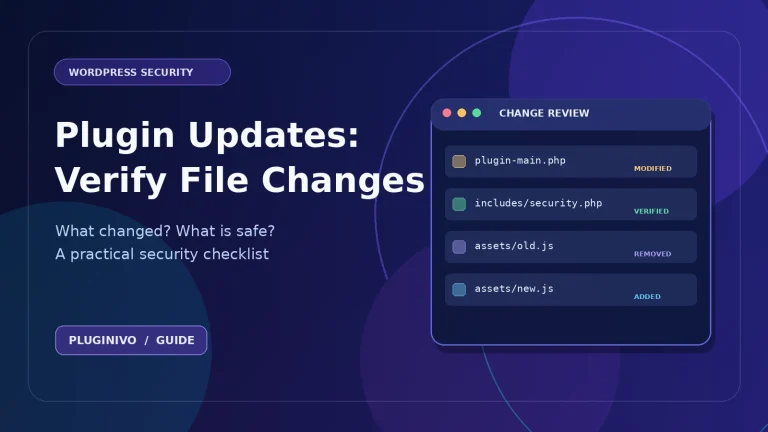
| Several plugin files changed together | Normal plugin update | Compare update log and vendor version |
| New PHP file inside media uploads | Unexpected executable content | Restrict access and investigate urgently |
| Theme file changed after a deployment | Authorized design edit | Confirm deployment owner and file diff |
| Repeated changes to unknown files | Automation error or persistent compromise | Inspect access logs and permissions |
These examples are clues, not a detection verdict. Attackers can imitate ordinary files, and legitimate tools can create unusual paths. Review the entire change context.
What to do when an alert is suspicious
Preserve logs and a reliable backup, rotate compromised credentials, check administrator accounts and revoke unknown sessions. Use your hosting provider’s incident process if you need immediate isolation. Restore known-good software only after identifying the entry point where possible, otherwise a malicious change may reappear.
A monitoring plugin can help you notice modifications; it is not a replacement for malware scanning, firewall controls, backups or a qualified investigation. Pluginivo File Integrity Monitor PRO focuses on observing file changes; evaluate how its alerts fit into your wider security routine.
Reduce alert fatigue
Agree on maintenance windows, record deployments and establish an approved baseline after trusted updates. Review alerts according to risk: a new executable in a sensitive directory deserves a faster response than a verified translation-file update. Keep a short record of what was checked and why the alert was closed.
Frequently asked questions
Does every changed checksum indicate malware?
No. Any legitimate file edit changes its hash too.
Should I restore every flagged file?
No. Confirm its origin first and keep evidence if a security incident is suspected.
Can alerts replace backups?
No. Detection helps you notice changes; backups help you recover.
Takeaway: A calm triage checklist makes alerts useful. Investigate path, timing, user activity and file content before deciding whether to accept a change or escalate.