WooCommerce Checkout Optimization: 12 Fixes to Reduce Abandonment (2026)
Cart recovery starts before a cart is abandoned. If shoppers encounter confusing fields, unexpected delivery charges or a payment method that fails on mobile, another reminder email will not solve the underlying problem. Improving the WooCommerce checkout can remove friction before customers leave.
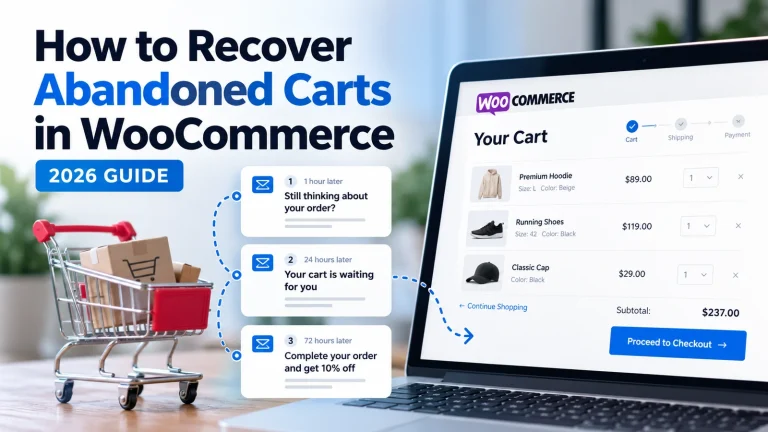
To evaluate checkout changes, connect your improvements with recovering abandoned WooCommerce carts instead of counting every submitted order as a sale.
This WooCommerce checkout optimization guide covers 12 practical improvements you can test in 2026. It distinguishes the modern Checkout block from classic shortcode checkout, explains what to measure and avoids promising a universal conversion uplift.
Related Pluginivo tools: Explore Abandoned Cart Recovery PRO for eligible carts that still need a follow-up, and Order Profit Calculator PRO to review the economics of the orders you recover. Fixing the checkout and following up afterward are complementary tasks, not substitutes.
See our abandoned cart email sequence guide.
First identify which checkout your WooCommerce store uses
Open your Checkout page in WordPress and inspect its content. You may be using the Checkout block or the older [woocommerce_checkout] shortcode. These are not interchangeable when it comes to extension compatibility, field customizations and hooks.
The WooCommerce Checkout block is managed through the block editor, and its payment integrations must explicitly support that block. A method that works on classic checkout may not appear in block checkout. Use the official Checkout block reference to check the relevant settings before changing the page.
12 WooCommerce checkout improvements worth testing
1. Remove fields that are truly optional
Start with company name, second address line and optional phone details. In Checkout block settings, some address fields can be shown or hidden or made optional. Do not remove information required for taxes, delivery, fraud screening or a particular payment provider. WooCommerce explicitly cautions that certain fields are needed by other components.
2. Let the browser fill addresses correctly
Browser autofill reduces repetitive typing, especially on mobile. Make sure address fields are standard and test separate billing and shipping addresses. Avoid forcing custom JavaScript input masks unless they are necessary and thoroughly tested. WooCommerce’s March 2026 improvements included more specific autofill tokens for billing and shipping fields.
3. Show delivery options and realistic costs early
Do not let delivery cost appear as a surprise at the final button. Explain when shipping is calculated, which destinations are supported and whether free shipping has a minimum threshold. Keep the actual WooCommerce shipping-zone rules authoritative rather than relying on hardcoded marketing text.
4. Verify each payment method in the actual checkout layout
Turn on a gateway only after testing a real payment journey in the checkout type your store uses. For block checkout, confirm the gateway reports compatibility and is visible for relevant countries, currencies, shipping methods and order totals. If customers see “no payment methods available,” compatibility and configuration should be among your first checks.
5. Offer express payments only when they work reliably
Wallet and express buttons can reduce manual typing for supported customers. But Apple Pay, Google Pay and other express methods depend on gateway availability, supported devices, browser contexts and configuration. Test payment confirmation, shipping selection and order creation—not just whether a button appears.
6. Make the final payable amount obvious
Display shipping, taxes, discounts and the final total clearly. If an offer is applied, show how it changed the number. The checkout total may recalculate after shipping, addresses or coupons change. Be careful with dynamic pricing and currency-switching extensions that can make the displayed amount stale before payment.
7. Make errors specific and actionable
A useful message tells the shopper what failed and where to fix it: invalid postal code, unsupported destination or declined payment. Avoid a generic “Something went wrong” without guidance. Test that errors appear beside the relevant field and that existing entries are not erased unnecessarily.
8. Test the checkout on a real phone
Use a narrow screen and slow connection. Check keyboard types for email and phone, text size, error visibility, sticky headers, coupon interactions and whether the final button is easy to reach. Test both portrait mode and return visits, not just a desktop responsive emulator.
9. Avoid unnecessary account-creation barriers
When your business rules permit it, review whether guest checkout is an option. Make account benefits clear without forcing customers to invent a password before paying. Check how order confirmation, receipts, digital downloads and subsequent support work for a guest.
10. Keep checkout scripts and integrations lean
Exclude the relevant cart, checkout and account pages from inappropriate full-page caching. Avoid stacking multiple plugins that manipulate the same fields, coupons or payment buttons. Debug JavaScript conflicts in a staging environment and verify that optimizations do not break the Store API or order completion.
11. Check what happens after payment
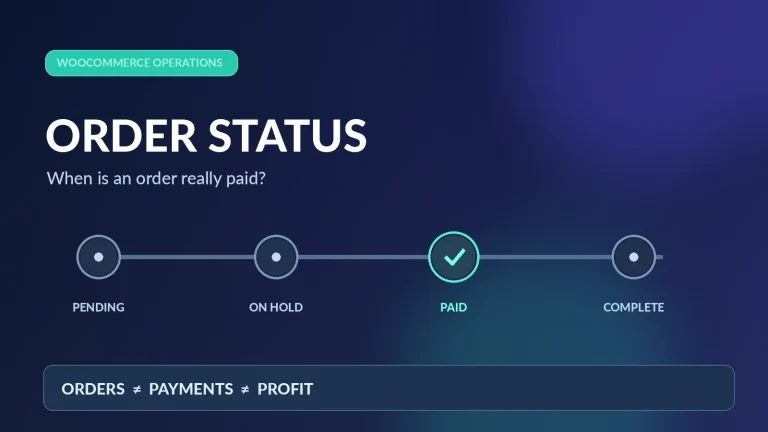
A successful payment should lead to a clear confirmation page and exactly one expected order. Test delayed gateway responses, failed payments, customer retries and callbacks or webhooks. Keep emails and fulfillment tied to the correct payment/order status; a redirect alone does not prove payment settled.
12. Measure completed purchases, not just clicks
Track product-page visits, checkout starts, payment failures and completed orders with consistent definitions. Segment by device, country, payment method and new-versus-returning customers where privacy and data quality permit. Compare conversion alongside refund rates, average order value and contribution after fees.
A simple checkout audit you can perform today
- Open the real checkout in an incognito session as a guest.
- Place one low-value product in the checkout flow and inspect the final total.
- Test one domestic and one supported international shipping address.
- Try the available payment options in a safe test or staging environment.
- Leave a required field empty to inspect the validation message.
- Repeat the same journey from a mobile device and a slower network.
- Check that the order is created once and that confirmation is understandable.
- Write down the friction points and address one at a time.
How to judge whether an improvement actually helped
Suppose 1,000 eligible checkout sessions produced 320 completed orders before a change and 342 after it. The observed checkout completion rate moved from 32.0% to 34.2%, an increase of 2.2 percentage points. That does not establish that a changed field caused the increase: visitor mix, campaigns, seasonality and random variation may differ.
Run a properly controlled comparison when traffic is sufficient. If you cannot run an A/B test, document what changed, keep the measurement window consistent and look for supporting reductions in the particular errors or drop-off steps you targeted.
What to do with shoppers who still leave
Even a well-designed checkout will not convert every visitor. Some need more time; others change their mind. For carts with appropriate permissions or other lawful basis for contact, a measured follow-up can be useful. Explore Abandoned Cart Recovery PRO to review recovery options and Order Profit Calculator PRO to check whether recovered orders remain profitable after direct costs.
Frequently asked questions
Is the WooCommerce Checkout block better than classic checkout?
Both can work well. The Checkout block is the modern default for many stores, but your chosen gateway, theme and extensions must support it. Test compatibility rather than assuming the latest interface will work with every plugin.
Should I remove the phone number field?
Only if your shipping, support, fraud and local business requirements do not need it. Making it optional may be preferable to removing it completely.
Does guest checkout always improve conversions?
Not always. It removes one possible barrier, but account requirements can be legitimate in specific business models. Test against your store’s customer needs and operational rules.
Will a faster checkout eliminate abandoned carts?
No. Checkout friction is one cause, not the only cause. Product fit, affordability, delivery terms and purchase timing also matter.
Fix the cause before automating the follow-up
Start with payment compatibility, field clarity and trustworthy totals. Then improve mobile usability and error recovery. When those fundamentals are reliable, cart-recovery automation becomes more useful because it brings customers back to a checkout they can actually complete.